
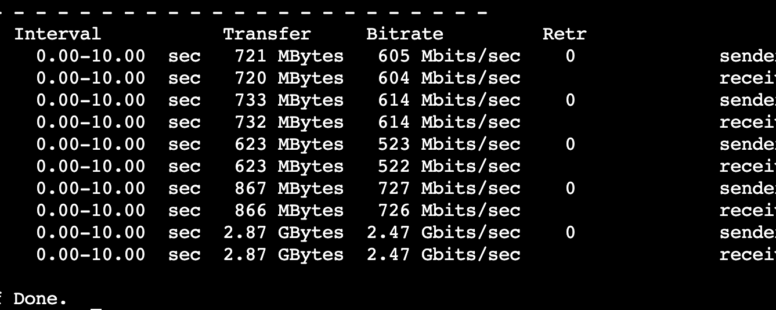
Yes, you can upgrade the NIC to 2.5Gbit on any mini pc running Proxmox
(Last Updated On: )When you have some network hungry containers, plus backups running, plus streamming… sometimes your 1GB NIC is not fast enough or it freezes! (I am looking at you Intel NIC!)
Context
I have – what I hope is – a healthy proxmox node running the heart of my Smart Home. It has a VM for Home Assistant, and several LXC Containers with services like Frigate, Nextcloud, Jellyfin, Portainer and more.
But while the services run on the node, the data for things like the Frigate recordings or the Jellyfin videos live on my (old) NAS. Also the full backups of my containers and vm are stored on the same NAS. The backups run daily.
That above means, that at times the network load is kind of heavy (backups + video/in + video/out) and the Intel NIC my ThinkCentre m93p has is known to have problems with freezing and make the system unresponsive until you reboot the whole node. It already happened to me once while I was kilometers away!
We can update it! …Do not?
An USB 3.0 (not 3.1!) has a theorical bitrate speed of 5 Gbps, of course that is usually lower due hardware constrains and/or usage of the same bus. That means, we could pack a USB 3.0 2.5GbE NIC on a free USB 3 Port and get a 2.5Gbit connection!
While this is true, searching the internet for references I found that NICS with Realtek chips are well supported, specially the RTL8156 and RTL8156B series. BUT BE CAREFUL, the RTL8156BG seams to be flaky and sometimes work, sometimes not.
After searching and reading several comments and specs I decided to get a couple of this adapter that has a RTL8156B Chip.
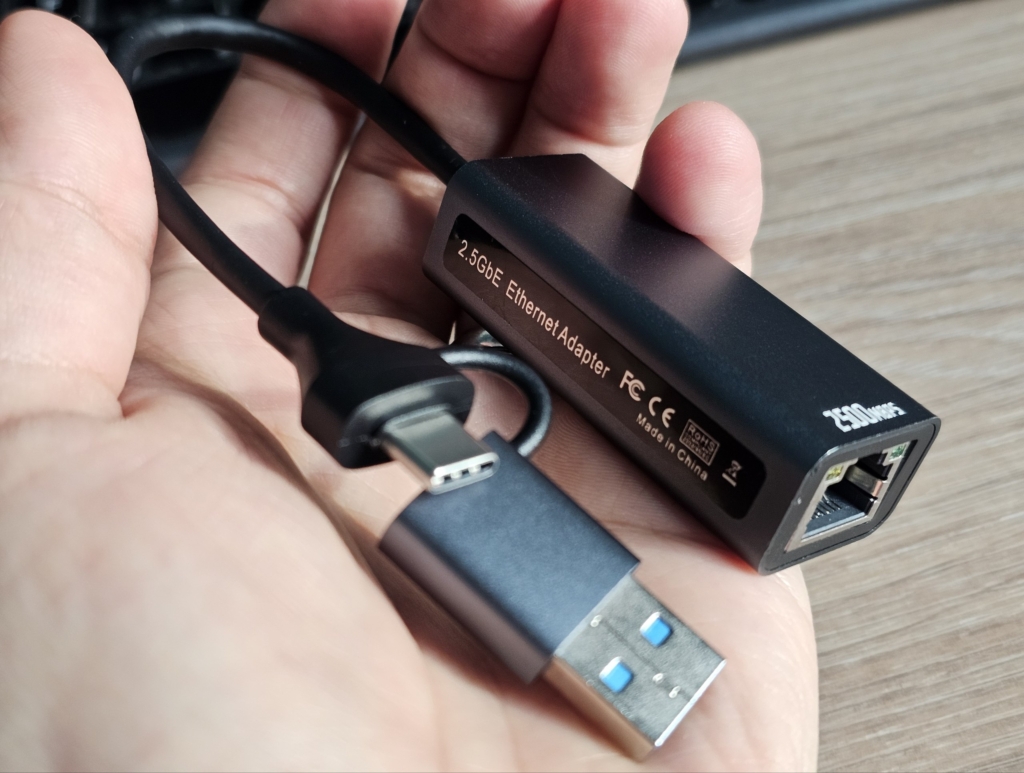
I install it on my m93p running Proxmox 8.4.16 and into another new node running 9.1.4 that I am preparing (that also has an 1GbE port). In both the devices where directly recognized and the correct drivers where loaded.
After editing the configuration so the bridge point to the new network device, both connections where running and active (Proxmox Networking docs).
Proof I want Proof!
Now with two nodes running we can run iperf3 to test the network speed.
Node 10.69.20.3
iperf3 -s -B 10.69.20.3-s→ server mode-B→ bind to the USB NIC IP
Node 10.69.20.2
iperf3 -c 10.69.20.3 -B 10.69.20.2 -P 4-c 10.69.20.3→ connect to server IP-B 10.69.20.2→ bind to Node A USB NIC IP-P 4→ 4 parallel streams to saturate the NIC
The Result:
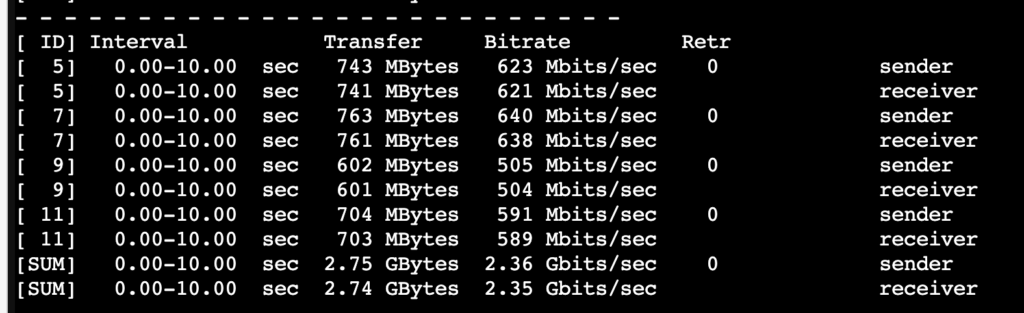
I would say that 2.35Gbits/sec is more than good here! I am happy 🙂
But… Can we go Jumbo?
From Wikipedia:
In computer networking, jumbo frames are Ethernet frames with more than 1500 bytes of payload, the limit set by the IEEE 802.3 standard. The payload limit for jumbo frames is variable: while 9000 bytes is the most commonly used limit, smaller and larger limits exist. Many Gigabit Ethernet switches and Gigabit Ethernet network interface controllers and some Fast Ethernet switches and Fast Ethernet network interface cards can support jumbo frames.
…
Jumbo frames have the potential to reduce overheads and CPU cycles and have a positive effect on end-to-end TCP performance.So… let’s try it? I know my new Unifi Switch and Router support Jumbo Frames.
The MTU size is was set to 1500 on my interface by default
ip link show vmbr1
 vmbr1: <BROADCAST,MULTICAST,UP,LOWER_UP> mtu 1500 qdisc noqueue state UP mode DEFAULT group default qlen 1000
Set it to 9000 but first your network device, in my case was called enx00e
ip link set enx00e mtu 9000
ip link set vmbr1 mtu 9000
ip link show vmbr1
vmbr1: <BROADCAST,MULTICAST,UP,LOWER_UP> mtu 9000 qdisc noqueue state UP mode DEFAULT group default qlen 1000And then run the same iperf3 test as before… and…
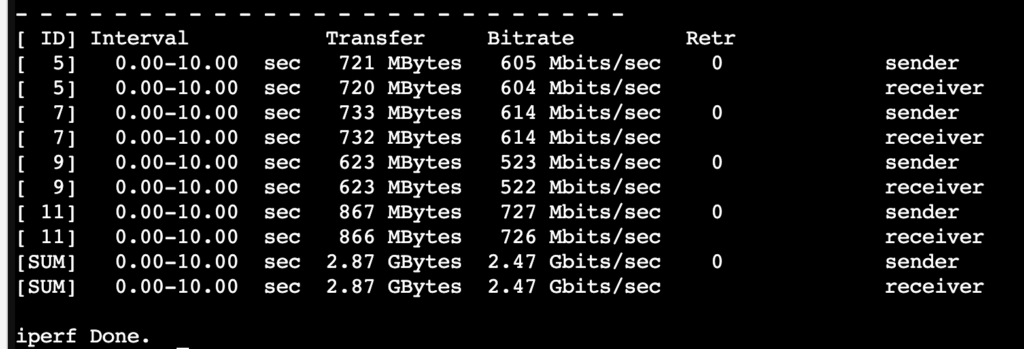
Important on Jumbo Frames!
I am not expert on this, but for what I could gather, unless your full network (including cable connected clients like PCs) support jumbo frames you could and probably will have some connections problems. So Take that into consideration if you let the Jumbo frames active.
The main recommendation I see is to use it for server-to-server or server-to-storage connections but not expose it to the end clients.
Make Jumbo frames always active.
Do not forget to set is as your default on your Proxmox Bridge and Device options!
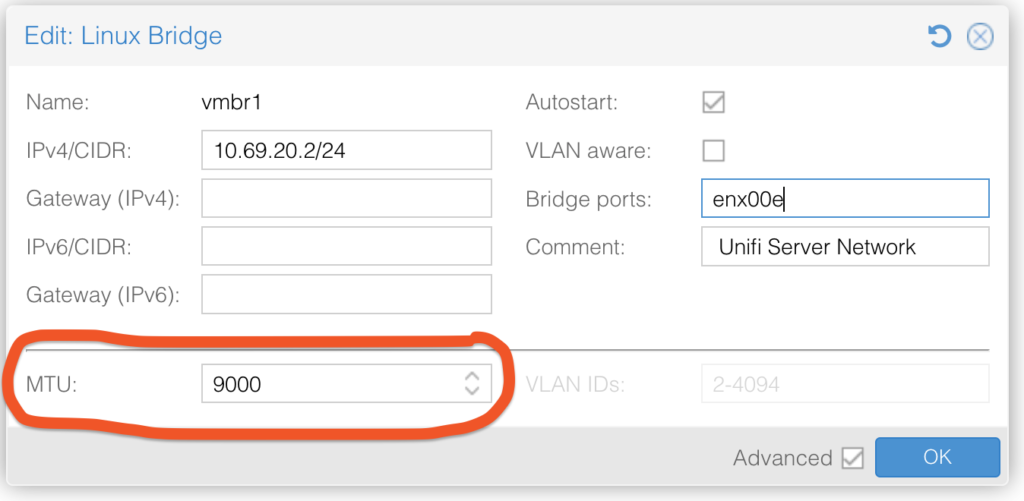
Or add this in your device and bridge config on /etc/network/interfaces
auto vmbr0
iface vmbr0 inet static
        address 10.69.20.3/24
        gateway 10.69.20.1
        bridge-ports enx00e
        bridge-stp off
        bridge-fd 0
        mtu 9000 <--- THIS